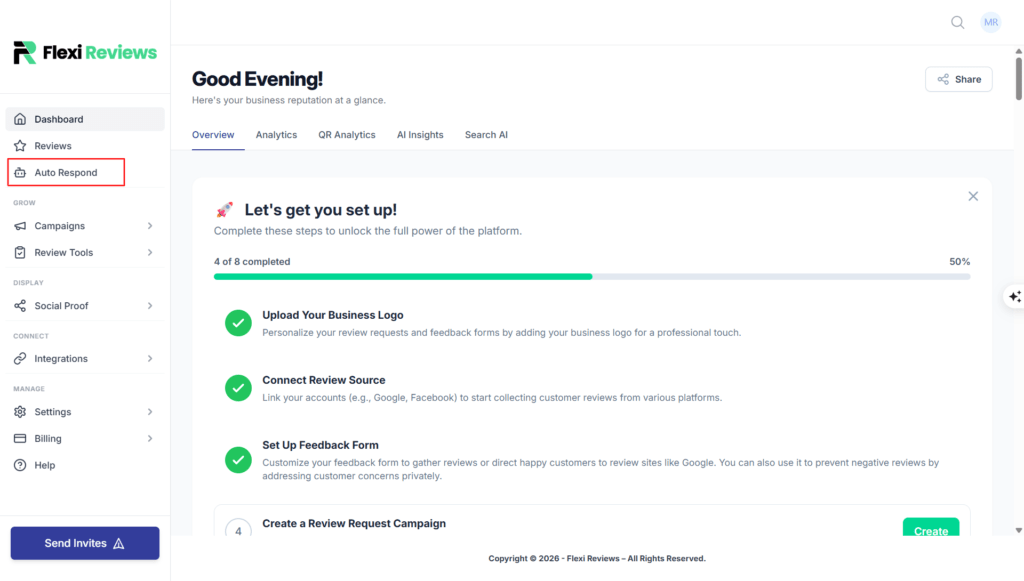
1.First click on Auto Respond
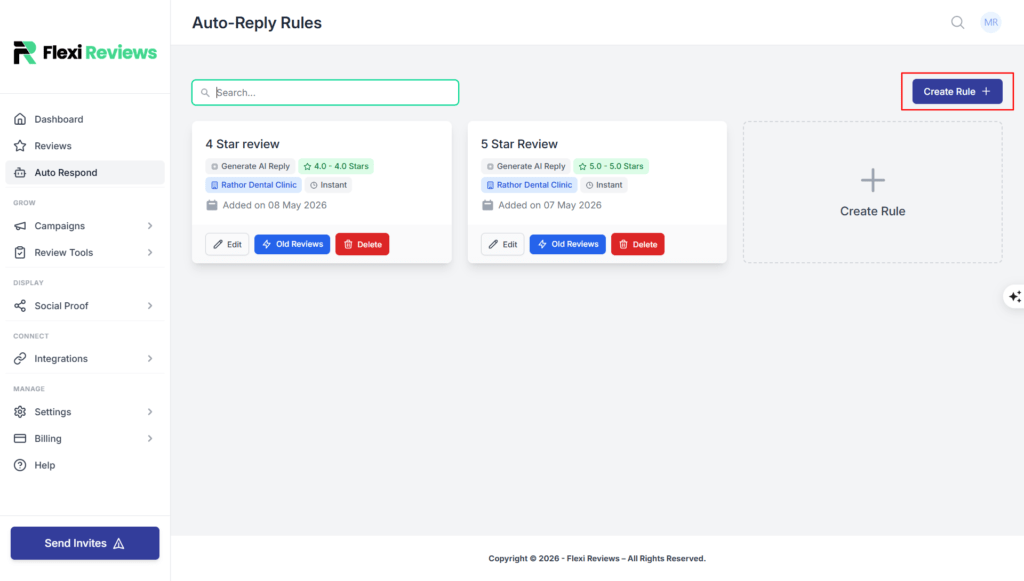
2.Click on Create Rule
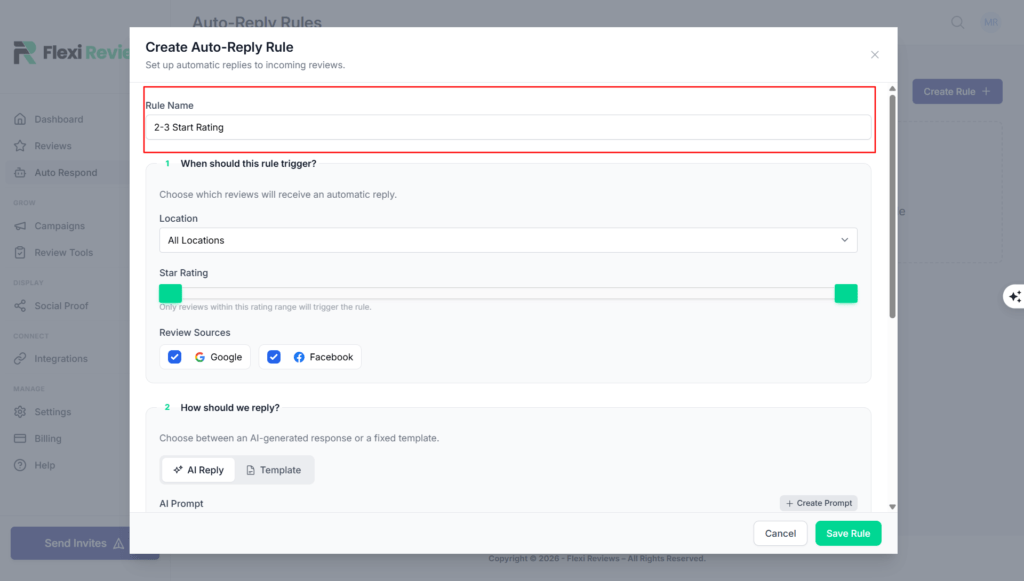
3. Give Rule Name in the first box
[Ex- Right now i’m creating rule for 2-3 star rating so i gave name 2-3 start rating rule. ]
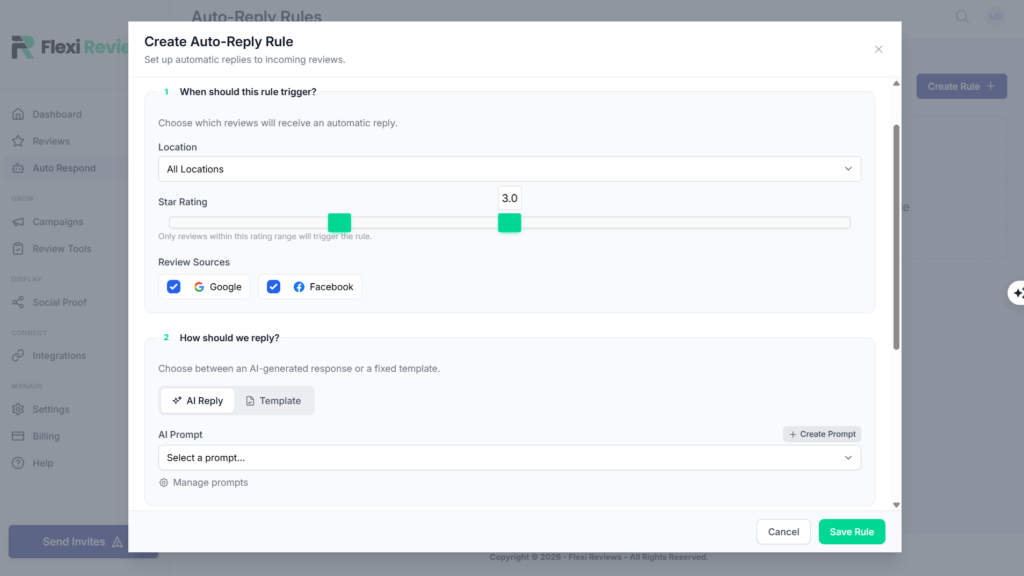
4. Setup rating
Drag the left bar to 2 and right bar to 3
5. Click on create prompt
6.Add name (2-3 start rating)
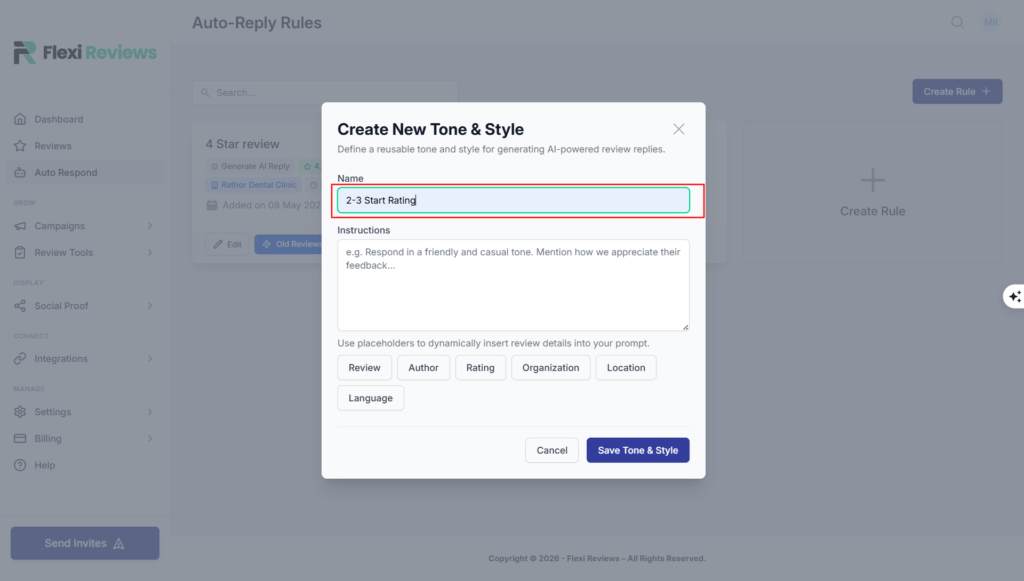
7. Give instruction
( Add the instruction go to prompt document https://docs.google.com/document/d/1ZdrAkvHTrsm33IxG0wRiM5wDWSy-j3Mu5VXm16yspkk/edit?tab=t.79qzncwrqv8m Scroll down and copy the prompt )
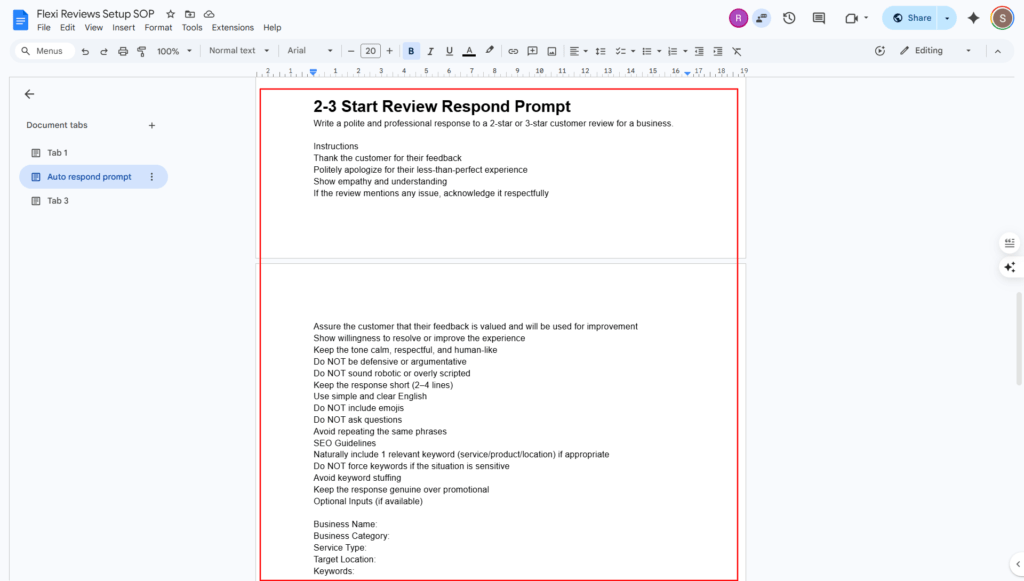
Paste the prompt in the instruction column
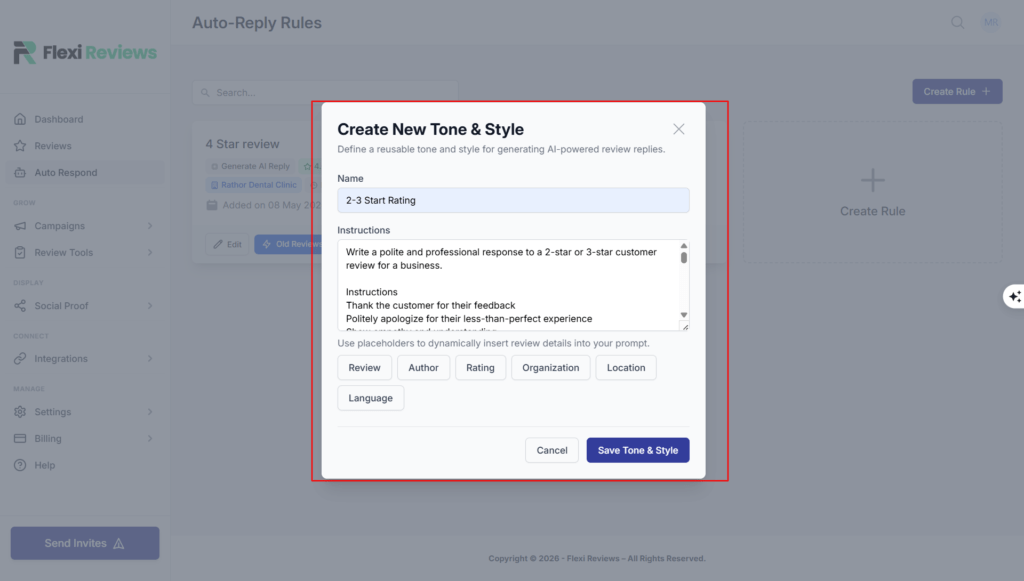
In the prompt we have to add
Business name
Business category
Service Type
Target location
Keywords
8.Click on Save Tone and style
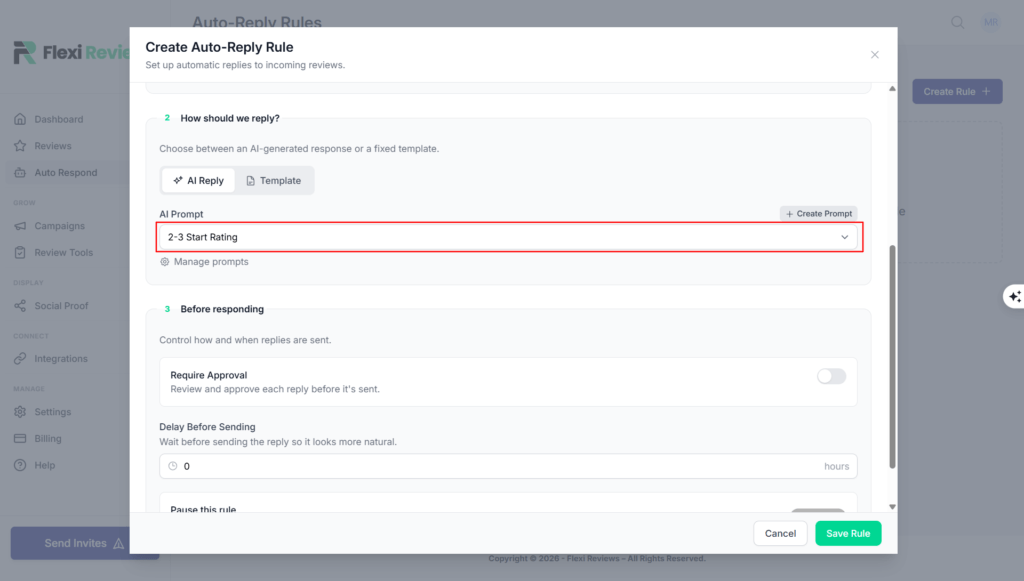
9. Now Click Select Prompt
10. Choose you gave the name of create prompt
11. Click on Require Approval
12. Now give email to Approval email
In this email section, we have to provide the email address where we receive the reviews, and you have to approve the reply there.
13. Now click on save rule setup is complete